

Copilot may already be inside Word and Excel, and your Microsoft 365 subscription may cost more because of it.
By Elizabeth Ndungu | Founder, Ndungu Consulting | Tech Coach for Adults 50+
If you use Microsoft Word or Excel, you may have noticed something new appearing on your screen.
It might be a small Copilot icon, a sparkle symbol, a suggestion box, or a panel asking if you want help writing your document.
Many of my students did not want the help.
In my own teaching practice, almost every student over 55 who asked me about Copilot wanted it gone. They found it distracting and confusing. Some did not know why it had appeared. Others worried that they had clicked something by mistake and could not work out how to make it go away.
That reaction matters.
A feature may be useful, but it can still feel intrusive when it appears without a clear explanation. You should be able to decide which tools you use inside a program you are already paying for.
Microsoft added Copilot to many Microsoft 365 Personal and Family subscriptions in 2025. The company also increased its US subscription prices. Existing subscribers generally saw the higher price when their plans renewed.
Copilot can help with writing, spreadsheets, and email. You may find it useful once you understand what it does. You may also decide you do not want it.
This article explains what Copilot is, what you may be paying for, and how to turn it off.
What Copilot Is

Copilot is an AI assistant built into Word, Excel, Outlook, and other Microsoft apps. You do not open a separate website. It sits inside the program you already use.
In Word, you can ask it to draft a letter, rewrite a paragraph in a softer tone, or summarize a long document. In Excel, you can ask it to explain a formula or build a simple chart. In Outlook, it can summarize a long email thread or help you draft a reply. You type your request in plain language and it responds.
What You May Be Paying For
In January 2025, Microsoft included Copilot in its Microsoft 365 Personal and Family plans and raised US prices for the first time in over a decade. The increase was $3 a month, about $30 a year. The Personal plan went from $69.99 to $99.99 a year, and Family from $99.99 to $129.99. New subscribers paid the higher price right away. Existing subscribers saw it at their next renewal.
As of June 2026, Microsoft still lists Personal at $99.99 a year and Family at $129.99. Microsoft adjusts prices over time, so check the current figure on your own account.
Here is what many people were not clearly told. Microsoft created Personal Classic and Family Classic plans for some existing subscribers who wanted to keep their Office apps without Copilot, at the old price.
Microsoft described these as limited-time options. Depending on your account and location, a Classic plan may appear when you try to change or cancel your subscription. It may not be available to everyone.
In October 2025, Australia’s competition regulator took Microsoft to court. It alleged that Microsoft pushed millions of customers toward the higher-priced plans with Copilot without clearly telling them a cheaper Classic option existed.
If you do not want Copilot, check the subscription options inside your Microsoft account before you renew or cancel. Do not assume a Classic plan will appear, but it is worth looking.
How to Turn Copilot Off
If you have a Personal or Family Microsoft 365 subscription, you can switch Copilot off yourself. You do not need anyone’s help.
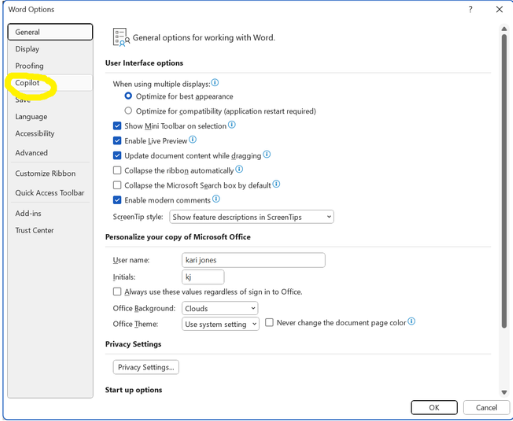
On a Windows computer, in Word:
1. Open Word.
2. Click File in the top left corner.
3. Click Options.
4. Click Copilot in the list on the left.
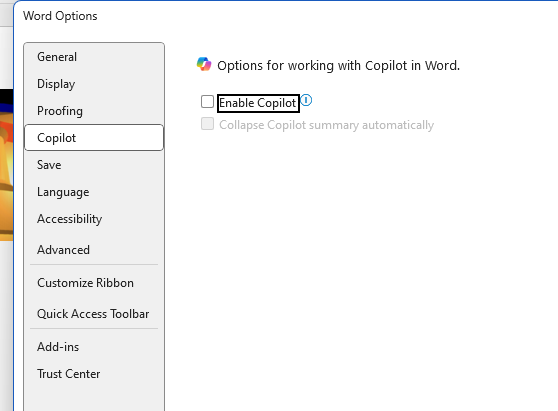
5. Uncheck the box that says Enable Copilot.
6. Click OK, then close and reopen Word.
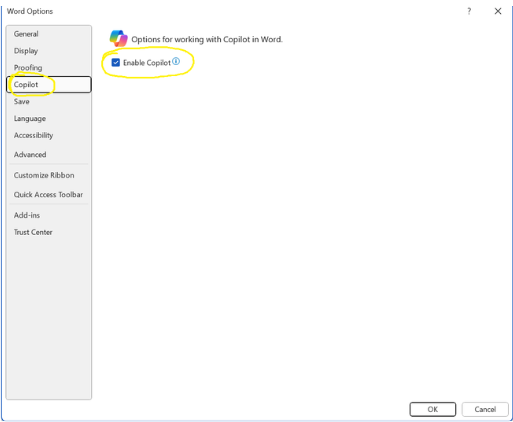
That removes the Copilot button and turns off its features in Word. Do the same in Excel and PowerPoint separately. The setting only applies to the app you change it in, and only on that computer, so if you use more than one device, repeat it on each.
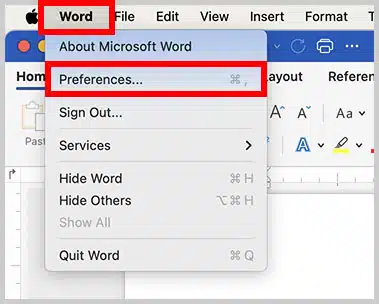
On a Mac, open Word, then go to the Word menu, choose Preferences, then Copilot, and uncheck Enable Copilot.
If you do not see the Copilot option, you may be using an older version of Microsoft 365. Update the program and check again. The option may also be unavailable on certain devices or account types. You cannot turn Copilot off with this checkbox in the web, Android, or iOS versions of Word, Excel, and PowerPoint.
Two smaller fixes if you only want it out of the way:
• To hide the button without turning Copilot off, go to File, Options, Customize Ribbon, and uncheck Copilot.
• If a Copilot button floats over your page, right-click it. Depending on your version, you may see Dock or Move to ribbon. That moves the button out of your way, but it does not turn Copilot off.
One caution. If your version is too old to show the Enable Copilot setting, there is another route through File, Account, Account Privacy, Manage Settings, where you can switch off the experiences that analyze your content. That works, but it also turns off other helpers like text predictions and suggested replies. Try the simple Copilot checkbox first.

If You Decide to Keep It
Not everyone wants it gone. Some people, once they see what it does, find it genuinely useful.
Michael retired two years ago after a long career in facilities management. He used Word fine but called himself a complete beginner with Excel, and kept asking his daughter to set up spreadsheets for a community group he helps run.
When we looked at his Microsoft 365 account, Copilot was already there, included in the plan he was paying for. We spent about forty minutes with it. Michael typed plain requests: “I want a spreadsheet to track monthly income and spending,” then “add a column that totals each row.” Copilot built the framework. He adjusted the headings to match what the group tracked. By the end he had a working spreadsheet he had made himself.
“I’ve been embarrassed about Excel for years. I didn’t realize I could just ask it what I wanted.”
Michael still checks everything it produces, because it gets things wrong and does so confidently. Read what it gives you before you use it, especially in Excel, where a wrong formula is not always obvious. But for a first draft of a letter, or a starter spreadsheet, it saved him real time.
Michael’s name has been changed to protect his privacy.
Is Microsoft Copilot Safe for Adults Over 50?
Copilot can be used safely for ordinary writing and spreadsheet tasks, but you still need to think about what you give it.
Do not enter passwords, Social Security numbers, bank account information, private medical records, or anything that could harm you if it were exposed.
Microsoft says that prompts, responses, and file contents used through Copilot in its home Microsoft 365 apps are not used to train its AI models. That is reassuring, but it does not mean you should treat Copilot as completely private, or assume everything it produces is correct. Use non-sensitive information where you can, and check its work before you rely on it.
Always verify important medical, legal, financial, or safety information through a qualified professional or trusted source.
You Don’t Have to Use Everything That’s New
Technology companies add features constantly, and most are optional. If you open Copilot, decide it is not for you, and turn it off, nothing is lost. That is your choice to make inside a program you pay for.
Try it with a simple, non-sensitive task. If it is not useful, switch it off and continue working the way you prefer.
I write regularly about technology safety and digital literacy for adults over 50. Following me here on Medium is the best way to see the next piece when it comes out.
My Basic Computer Skills Guide is available here:

https://elizabethw2.gumroad.com/l/basiccomputerguide
For calm, one-on-one technology help with no pressure, no jargon, and no embarrassment, visit ndunguconsulting.com.
About the Author

Elizabeth Ndungu is the founder of Ndungu Consulting, a technology coaching and digital literacy practice that helps adults over 50 build confidence with everyday technology. Computers, phones, AI tools, email, Microsoft Office, online safety, and digital skills in plain English. She provides patient, practical support for people who want to learn without jargon, pressure, or embarrassment.
Sources:
• Microsoft 365 Blog — Copilot is now included in Microsoft 365 Personal and Family, January 16, 2025: https://www.microsoft.com/en-us/microsoft-365/blog/2025/01/16/copilot-is-now-included-in-microsoft-365-personal-and-family/
• Microsoft — Copilot pricing plans for individuals (current Personal and Family prices): https://www.microsoft.com/en-us/microsoft-365-copilot/pricing/individuals
• Microsoft Support — Turn off Copilot in Microsoft 365 apps: https://support.microsoft.com/en-us/office/turn-off-copilot-in-microsoft-365-apps-bc7e530b-152d-4123-8e78-edc06f8b85f1
• Microsoft Support — Copilot in Microsoft 365 apps for home: your data and privacy: https://support.microsoft.com/en-us/privacy/copilot-in-microsoft-365-apps-for-home-your-data-and-privacy
• IntuitionLabs — Microsoft Copilot Pricing and Licensing (covers the Classic plans and the ACCC court action), 2026: https://intuitionlabs.ai/articles/microsoft-copilot-pricing-licensing
TAGS Microsoft Copilot · Microsoft Word · Artificial Intelligence · Adults Over 50 · Digital Literacy
Leave a Reply